
Welcome to the PI-1500 District Contacts Report Instructions
- Introduction to Renovated PI-1500 (PowerPoint)
- Introduction to the Renovated PI-1500
- IT Security Policy/protocol for ID and Password
- Existing Accounts in the PI-1500
- New Accounts in the PI-1500
- Granting Access to a Third Party Individual (CESA, auditors, etc.)
- Change your Password
- Forgot Your ID?
- Forgot your Password?
Introduction to the Renovated PI-1500
This portal provides school districts with a tool that allows local decision making as to who is responsible for completing the different school finance reports. Security for school district staff and end users that grants them permission to enter data for their school district has been elevated based on the reality of how the Internet operates. This information is designed to assist your school district in working through the related processes that follow.
The PI-1500 District Contacts is built around one key piece of individual information, the User ID. Once in the system, the User ID cannot be changed. All other individual profile information can be modified by the one granted permission to enter or edit the following list of data:
- First name
- Last name
- Position Title
- Email address
- Primary phone number and extension number (optional)
- Active (status) check
IT Security Policy/Protocol for ID and Password
School districts are responsible for keeping user credentials secure. Therefore, school districts should establish a formal IT security policy/protocol with regard to creating an ID and password for users.
Password Security
The "User ID" is often based on a portion of the employee's first and last name, while the password should contain upper and lower case letters and at least one number. To help create effective and secure passwords, school districts should incorporate the following rules as part of their IT Security policy:
- passwords should contain at least six characters;
- passwords should contain at least one number as well as one uppercase and lowercase letter; and
- passwords should be changed every 60 days.
This policy/protocol will benefit new employees and assist those assigned to grant them access to IT systems. Normally, the superintendent and at least one designee must provide the new employees with their User ID, email address and related duties.
Third-party Representation
The school district's IT Security policy/protocol should also speak to the conditions that allow a third-party representative to be granted access through the PI-1500.
Existing Accounts in the PI-1500
The PI-1500 utilizes both "active" users and "inactive" users:
- An "active" user has authority to enter data on behalf of the school district.
- An "inactive" user is someone with no current authority to enter data on behalf of the school district but their name may appear on past reports or documents.
School Districts Screen
After completing the login, individuals will be taken to a new screen with all of the school districts listed. Here they are asked:
"Please enter a full or partial school district, CESA or county name in the box provided.
If you know the LEA (Local Education Agency) number, you may enter that"
in the box below this statement. By clicking on the "Go" button, they will advance to the district's home (portal) page.
Password Changes
If an individual ever forgets their password, it is that individual’s responsibility to recover and change their own password. The link changing an individual’s password will provide the information needed.
New Accounts in the PI-1500
The school district superintendent and at least one designee are responsible for entering, editing, or deactivating individuals into the PI-1500. Only these individuals will have access to the following:
Go to the PI-1500 District Contacts Report.
At the center-bottom of the information is the Log In box. Please Log In.
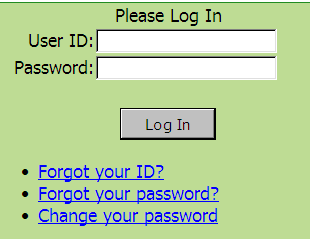
You are now at the PI-1500 home webpage. Above the information (displayed in the screenshot below) will be the school district's name and LEA code.
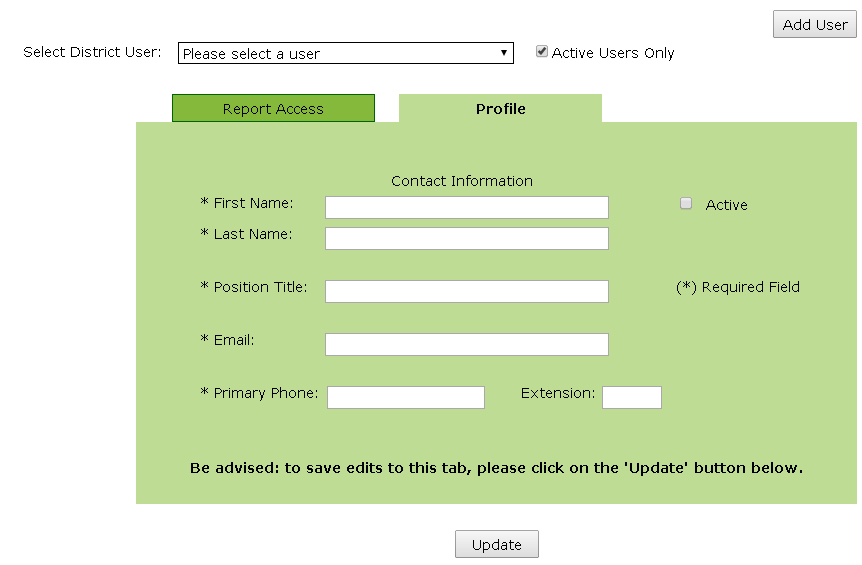
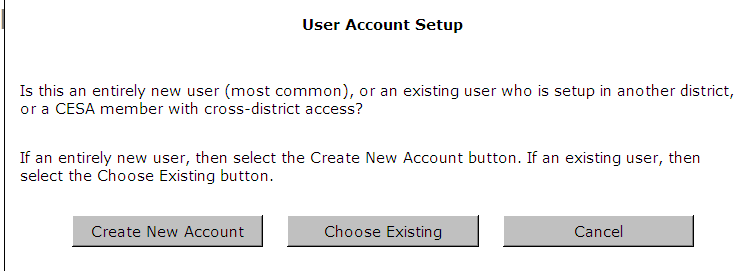
To the right of the school district’s name is the "Add User" button which takes you to a pop-up screen (below) with three options. To enter a new user, select "Create New Account".
A pop-up screen (below) will appear. Enter all three pieces of employee information:
- this employee’s permanent "User ID" should follow district protocol/IT Security policy. The new employee should not be allowed to use an ID from a previous Wisconsin LEA;
- original/temporary "Password" must be entered twice; and
- email address provided by the district or approved by the district.
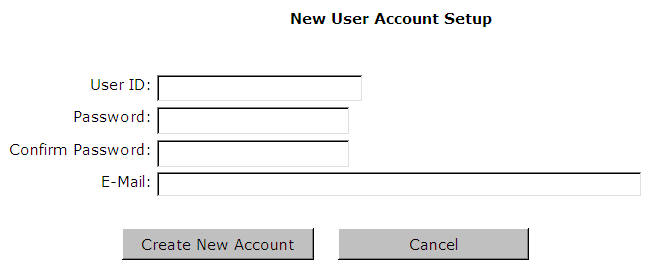
After you click "Create New Account," this message will appear in the bottom of this box: "The user account was successfully created." Click the "Cancel" button to return to the home page. Remember to work through the tabs on the main screen to set up the report permissions, profile, and security information for the new account.
Provide the new user with needed information. From the upper right-hand corner of the PI-1500 home page (see screenshot below), "export user summaries to" select "PDF" and provide the new employee with a copy of this document.

This document provides all the information the new user needs, excluding their individual password. It also provides the user with a list of other employees who do the same reports and thus can be a reference. Remember, none of this information is confidential.
This document will not show anyone's password. Each new user will be expected to go through "Forgot your password?" to create their new password.
- "Choose Existing" See next section
- "Cancel" takes you back to the original screen.
Under the "Profile" tab, enter or modify the individual’s information as shown in the "3.a" screenshot above:
- First name
- Last name
- Position title
- Email address (will pre-load based on information already entered) - please confirm
- Primary phone number and extension number (optional)
- Active (status) check
At the bottom of the pop-up screen it reads: "Be advised: to save edits to this tab, please click on the 'Update' button below"
- If not all the required information has been entered and you click the "Update" button, the website will warn you with a new pop-up screen.
- The PI-1500 will also use a pop-up screen to let you know that all the required information has been entered: "Success - The Changes HAVE been updated."
- By clicking on the "Close" button you will return to the PI-1500 website.
Under the "Report Access" tab, this individual can be granted access or have it removed for the reports listed.
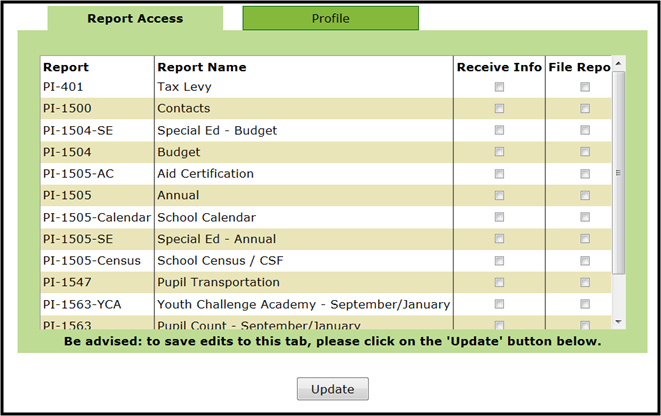
By clicking on the "Receive Info" box, this individual will receive DPI/SFS information via email related to that report. By clicking on the "File Repo" box, this individual has been granted the authority to enter data in that reporting portal on behalf of the school district. Both boxes should be clicked if this individual has the authority to file the report.
Granting Access to a Third Party Individual (CESA, auditors, etc.)
To allow a non-district employee access through the PI-1500 to the school district’s different reporting portals, credentials need to align to the district’s IT Security policy. This option should be used minimally and a high level of discretion is recommended as the profile can be modified from either location:
- The non-district employee will need to provide their "User ID" from another established PI-1500 site to complete the first step.
- The Superintendent or designee will log in to the PI-1500 portal.
- Click on the "Add User" button in the upper right-hand corner.
- Click on the "Choose Existing" option and this pop-up screen will appear:
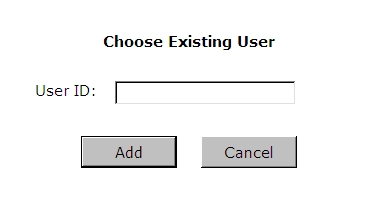
Enter this non-employee’s "User ID" and click the "Add" button. The pop-up screen will change, indicating whether that "User ID" is already in the system or is not in the state-wide system.
Note: This non-employee’s profile will be filled automatically with information from the other PI-1500 site. Any changes made to this individual’s profile will change that same information in the other PI-1500 statewide locations.
At the "Report Access" tab, this individual can be granted access or have it removed for the reports listed for your school district.
Change your Password
Go to the PI-1500 District Contacts Report.
At the center-bottom of the information is the Log-In box. Please click "Change your password."
A new page will come up where you will need to enter your:
- user ID;
- old password; and
- new password (twice)
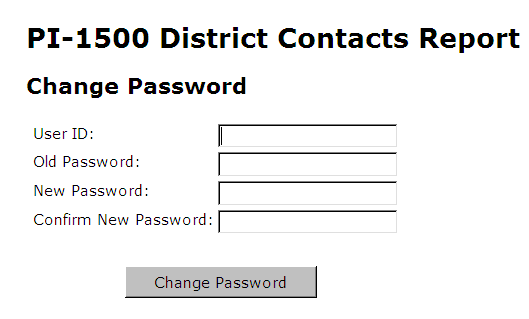
Click "Change Password. The screen will change with this statement "Your password has been updated." If an error is made between the two password entries, the screen will change with this statement "The new password and confirmation password did not match" and symbols will indicate the location of the errors. An error in the User ID will stop the process with a statement inserted, "User ID does not exist"
Forgot Your ID?
Go to the PI-1500 District Contacts Report.
At the center-bottom of the information is the Log In box. Please click "Forgot your ID?"
Steps to follow:
- In the green box (below the "Log In" button) is the link that will take you to a new page where you must answer the following questions and click the "E-mail ID" button.
- If done correctly, this statement will be inserted: "An email with your user ID has been sent to: ------@---- "(inserted email address)
- If an unknown email address is entered, an error message will stop the process with a statement inserted, "Could not find the email specified."
- When done correctly, your ID will be emailed to the address entered.
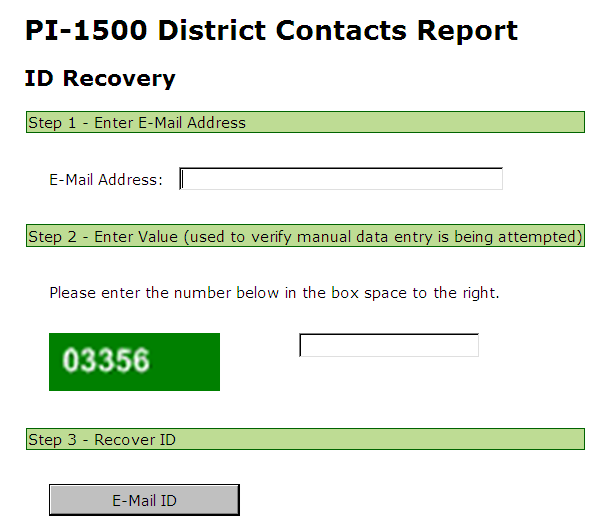
Before checking your email account, near the bottom of the screen is the following:
"Please contact one of the team’s School Finance Consultants should you need assistance, or return to the PI-1500 Home Page to log in." Normally, it is a good idea to click the "PI-1500 Home Page" link.
Forgot your Password?
Go to the PI-1500 District Contacts Report.
At the center-bottom of the information is the Log In box. Please click "Forgot your password?"
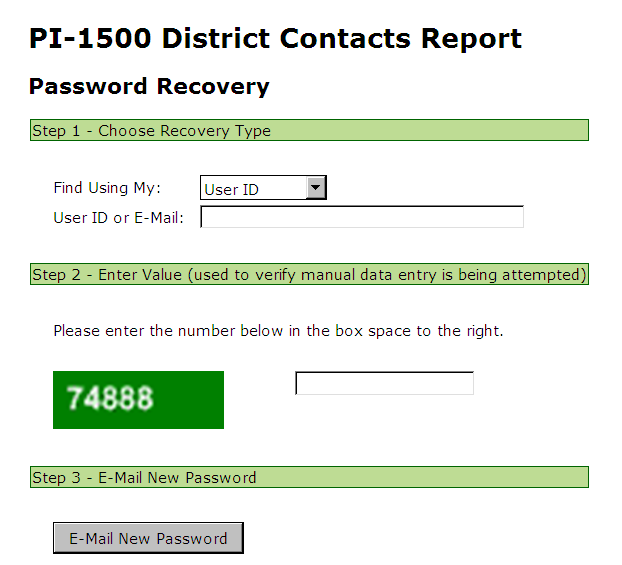
Steps to follow:
- In the green box (below the "Log In" button) is the link that will take you to a new webpage where you must answer the following questions and click the "Email password" button.
- When completing a Password Recovery, the individual will need to decide which of the two options for personal information (ID or E-Mail) will be entered.
- If done correctly, this statement will be inserted: "An email with your new password has been sent to: ------@----" (inserted email address)
- This will be a computer generated password. Follow the directions in the email to change your password to something you can easily remember.
Before checking your email account, near the bottom of the screen is the following:
"Please contact one of the team’s School Finance Consultants should you need assistance or return to the PI-1500 Home Page to log in." Normally it is a good idea to click the "PI-1500 Home Page" link.